Artificial Intelligence is redefining the way we work, create, and communicate. Google has now entered the next phase of AI innovation with its latest creation, the Google Gemini AI App. Designed to be more than just a chatbot, Gemini is your all-in-one assistant that helps you think, write, code, research, and even generate images.
Suppose you want to master the app and unlock its full potential. In that case, this detailed guide will teach you how to use Google Gemini AI like a pro, whether you’re a creator, student, or professional looking to boost productivity.
What Is Google Gemini AI?
Google Gemini AI is Google’s next-generation artificial intelligence platform, developed by Google DeepMind. It’s a multimodal system, meaning it understands and processes different forms of information, text, images, voice, and code all at once.
Gemini replaces Google Bard, bringing smarter reasoning, better creativity, and seamless integration with Google’s core apps such as Gmail, Docs, Drive, Maps, and YouTube. Whether you access it through the Google Gemini App or the web at gemini.google.com, the experience is designed to make complex tasks easy.
Think of Gemini as a creative partner that combines the intelligence of Google Search with the conversational power of AI.
How to Access and Set Up the Google Gemini AI App
Using Google Gemini is quick and simple. Follow these steps to get started:
- Visit the official website: Go to gemini.google.com.
- Download the mobile app: If you’re on Android, open Google Play and search for “Google Gemini AI App.”
- Sign in with your Google Account: Your existing Gmail credentials work perfectly for Google Gemini Login.
- Grant permissions: Allow camera, microphone, and file access if you want Gemini to handle voice commands, read documents, or analyze images.
- Say “Hey Gemini”: Once activated, you can start chatting hands-free, just like Google Assistant.
The app is currently available in most regions, and Google continues to expand support for iOS devices through upcoming updates.
Exploring the Google Gemini Interface
Once you’re logged in, you’ll see a clean and intuitive dashboard. Here’s a quick walkthrough of its main sections:
- Chat Window: Type or speak to Gemini AI Chatbot for quick answers, summaries, or advice.
- Image Generator: Use prompts to create visuals instantly with the Gemini AI Image Generator, ideal for thumbnails, concept art, or social posts.
- Docs & Drive Access: You can ask Gemini to find or summarize files stored in Google Drive.
- Voice & Camera Input: You can describe or show an image to Gemini for real-time explanations or suggestions.
Example: Upload a photo of your desk setup and ask Gemini for ergonomic improvement tips. It will analyze and suggest changes instantly.
Top Features That Make Gemini Stand Out
Google designed Gemini not just to compete with ChatGPT but to surpass it through deeper ecosystem integration and multimodal understanding. Here’s what makes it powerful:
- Smart Reasoning: Gemini uses real-time data from Google Search to give context-rich answers.
- Seamless Integration: Connects directly to Gmail, Docs, Sheets, and YouTube.
- Image & Code Generation: Supports text-to-image prompts and code explanations.
- Google Gemini Pro: Offers faster processing, deeper reasoning, and extended context for professional users.
- Cross-Device Sync: All your Gemini chats sync across devices when signed in with your Google account.
Pro Tips to Use Google Gemini AI Like a Power User
To truly use the Google Gemini AI App like a pro, you need to go beyond basic chatting. Here’s how:
1. Master Prompt Crafting
Instead of asking simple questions, use detailed prompts.
Example:
❌ “Write a blog post.”
✅ “Write a 1000-word blog post about AI trends in 2025 with headings, examples, and SEO keywords.”
The more context you give, the better Gemini’s results.
2. Use Gemini Across Google Apps
- In Docs, let Gemini draft or proofread content.
- In Gmail, ask it to write professional replies.
- In Sheets, request data summaries or formula explanations.
- On YouTube, use Gemini to summarize long videos.
This makes it your all-in-one productivity partner.
3. Create Visuals with Gemini AI Image Generator
If you need feature images or product visuals, describe your idea and let Gemini generate a unique image.
Example: “Generate a futuristic workspace with neon lights and laptops.”
This tool is perfect for content creators and designers.
4. Use Gemini for Research and Learning
Ask Gemini to summarize PDFs, explain complex terms, or translate articles. It supports a wide range of languages and learning styles.
5. Leverage Voice and Camera Features
When multitasking, simply say “Hey Gemini” to ask questions hands-free.
You can also show an image like for example, a product label or gadget, and ask for a quick explanation.
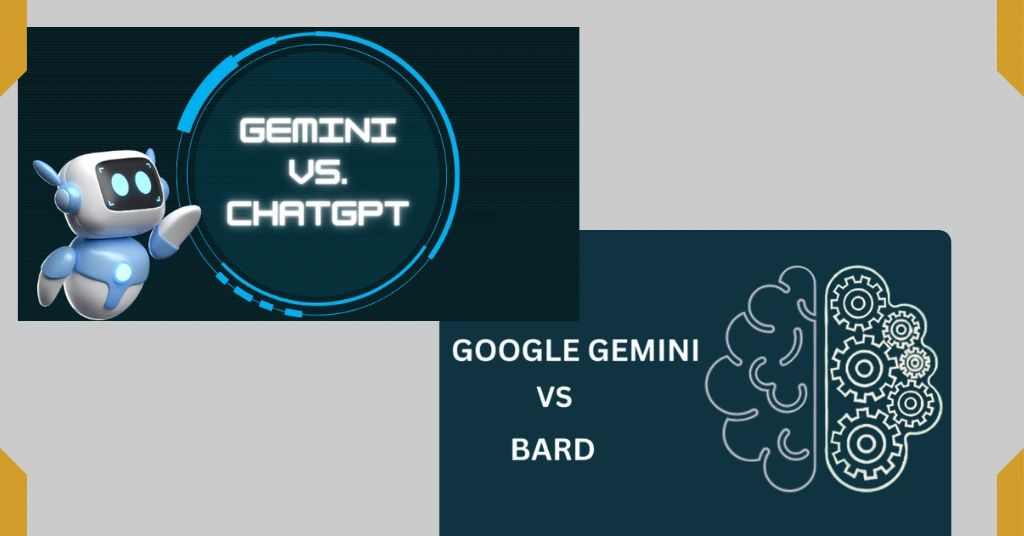
What’s the Difference Between Gemini vs ChatGPT, vs Bard?
| Feature | Google Gemini | ChatGPT | Google Bard |
| Developer | Google DeepMind | OpenAI | Google AI |
| Input Type | Text, Image, Voice | Text | Text |
| Integration | Deep Google ecosystem | API-based | Limited |
| Image Generation | Yes | Only with plugins | No |
| Free Access | Yes | Limited | Yes (discontinued) |
Verdict: Gemini offers the best option for users in the Google ecosystem, especially for Android and Workspace professionals.
Best Use Cases of Google Gemini AI App
- For Professionals: Draft emails, reports, presentations, and research papers.
- For Students: Simplify topics, summarize study materials, and prepare assignments.
- For Content Creators: Generate ideas, images, and social captions in seconds.
- For Businesses: Analyze data, create proposals, or draft client communication.
- For Everyday Users: Ask for recipes, reminders, directions, or real-time information.
Pro Insight: Gemini isn’t just smart; it’s designed to understand your intent and adapt over time.
Privacy and Security You Can Trust
Google ensures that Gemini AI follows strict data privacy standards. Your chats are not used for advertising, and you can delete history anytime. Gemini also provides easy access to manage activity, permissions, and app integrations directly from your Google Account settings.
Common Gemini App Issues and Fixes
| Problem | Quick Fix |
| Can’t log in | Clear app cache or reauthenticate your Google Account |
| App crashing | Update or reinstall the app |
| Voice not working | Enable microphone permission |
| Image tool disabled | Check region access or subscription level |
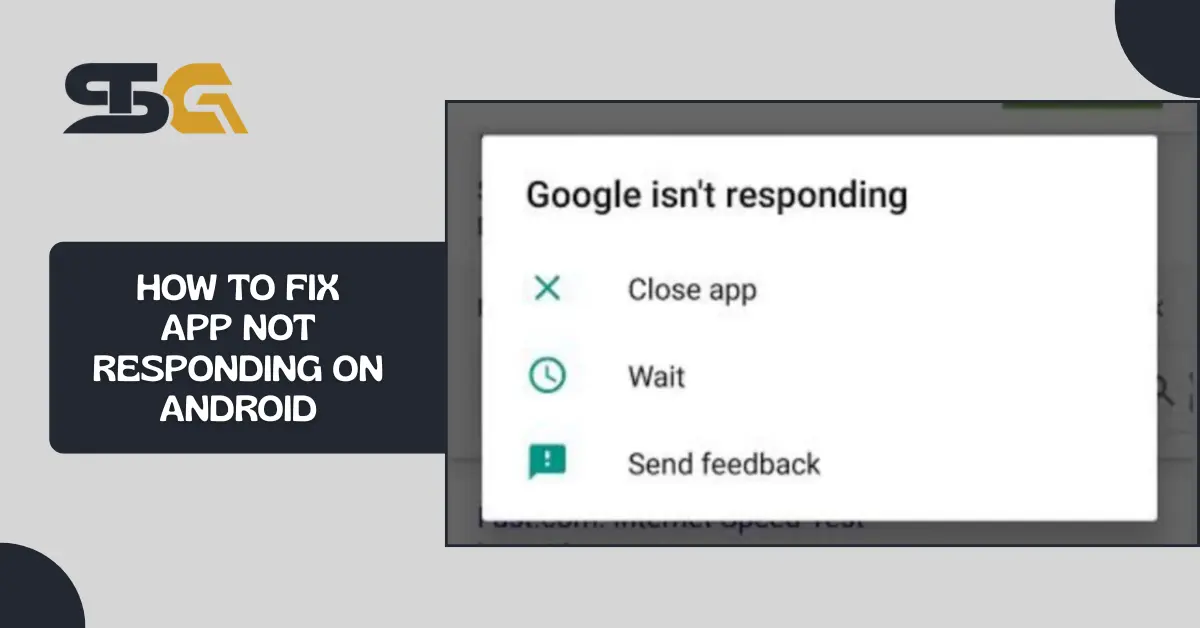
| Gemini not responding | Refresh the connection or switch to the web version |
Frequently Asked Questions (FAQs)
1. What is Google Gemini AI used for?
It helps users chat, create content, generate images, summarize data, and manage tasks across Google services.
2. How can I access Google Gemini?
Visit gemini dot google dot com or install the Gemini App on Android devices.
3. Is Google Gemini better than ChatGPT?
Gemini excels in Google integration and multimodal abilities, while Chatgpt offers plugin flexibility.
4. Can I use Gemini for free?
Yes, basic features are free. The Gemini Advanced plan provides extended capabilities.
5. Does Gemini replace Google Assistant?
Yes, on supported Android devices, Gemini can act as your main voice assistant.
6. Is my data safe with Gemini AI?
Google encrypts your data and allows you to delete or manage it anytime through your account settings.
Conclusion
The Google Gemini AI App is more than an upgrade; it’s a new way to interact with technology. With its multimodal intelligence, smart integrations, and user-friendly design, it’s ideal for professionals, students, and creators alike.
By following this guide, you’ll not only learn how to use Gemini efficiently but also unlock its true potential as a personal AI assistant that saves time, enhances creativity, and keeps you one step ahead in the digital world.
Explore more AI tools, app tutorials, and smart tech reviews on Smartech Guru; your trusted guide to innovation.