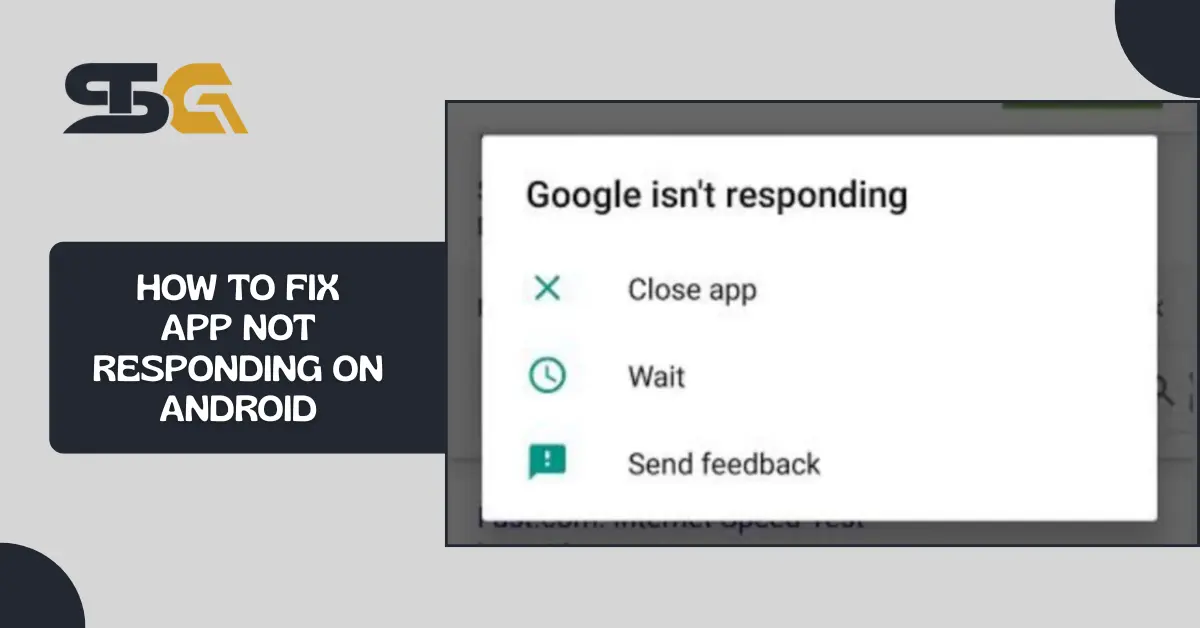
Few things may be as irritating as tapping on an app and seeing the reaction “App Not Responding.” Be it browsing social media, chatting on WhatsApp, or using a business application, this problem is definitely annoying.
The good part is that it is quite a common issue that can be easily fixed and does not require any technical know-how.
Smartech Guru assists Android users in solving common issues with apps, using straightforward methods. In this article, we aim to provide you with simple, step-by-step methods to guide you through potential causes for an app becoming unresponsive and ways to address this.
What Does “App Not Responding” Mean on Android
The Android operating system has an error trapping system that tells the users that ‘App Not Responding’ when an app is unresponsive to taps, swipes or any commands, and during this period, the app appears to have become unresponsive. While this may be the case, the app may be unresponsive to users; however, the system is still processing the app commands.
Android apps operate on a central interface. If that interface is stuck or has slow processing, the app freezes, and commands become unresponsive. However, in many cases, temporary issues that may relate to unresponsive commands, along with memory, background and other systems, may explain the processing delay.
Common Reasons Why Apps Are Not Responding on Android
- Using a lot of apps at once can make your phone max out on RAM, especially with older models or budget-friendly devices.
- Stored temporary app files can become corrupted and cause apps to behave and act unpredictably.
- Apps can become outdated, which can cause Android versions to become older and cause performance issues.
- Full internal storage can cause apps to become slower, freeze, or even crash.
- Apps that are data-based can become unresponsive due to unstable or slow internet.
As apps evolve alongside emerging technologies, their system requirements also increase, making optimization even more important.
Quick Fixes to Try When Apps Stop Responding
Before applying advanced solutions, start with these quick fixes. They solve the majority of issues.
Restart the App
Close the app completely and open it again. This refreshes the app process.
Force Stop the App
Go to Settings, Apps, select the app, and tap Force Stop. This is often more effective than simply closing it.
Restart Your Phone
A simple reboot clears memory and resets background services.
Check Internet Connectivity
Switch between Wi Fi and mobile data to see if the app responds better.
For more practical fixes like this, explore our App Tutorials section, where we cover step-by-step solutions for popular Android apps.
Clear App Cache and Data to Fix Apps Not Responding
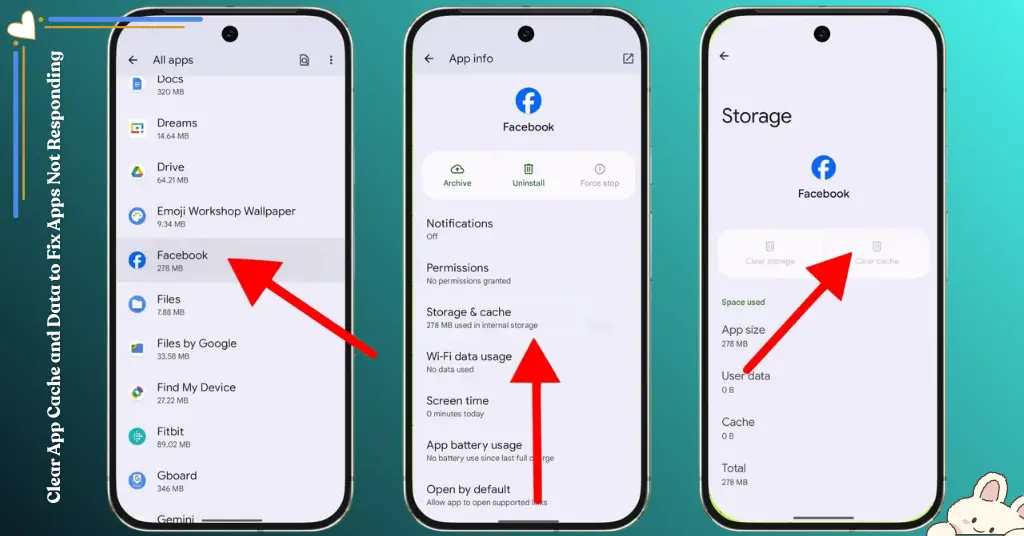
Clearing the cache is one of the most effective solutions for unresponsive apps.
What Is App Cache
Cache stores temporary files to make apps load faster. Over time, these files can become corrupted.
How to Clear App Cache
- Open Settings
- Go to Apps
- Select the problematic app
- Tap Storage
- Choose Clear Cache
If clearing the cache does not work, you may try Clear Data, but remember this resets app settings.
If you accidentally lose important chats or files, guides like Recover Deleted WhatsApp messages can help you restore your data safely.
Update or Reinstall the App Causing the Issue
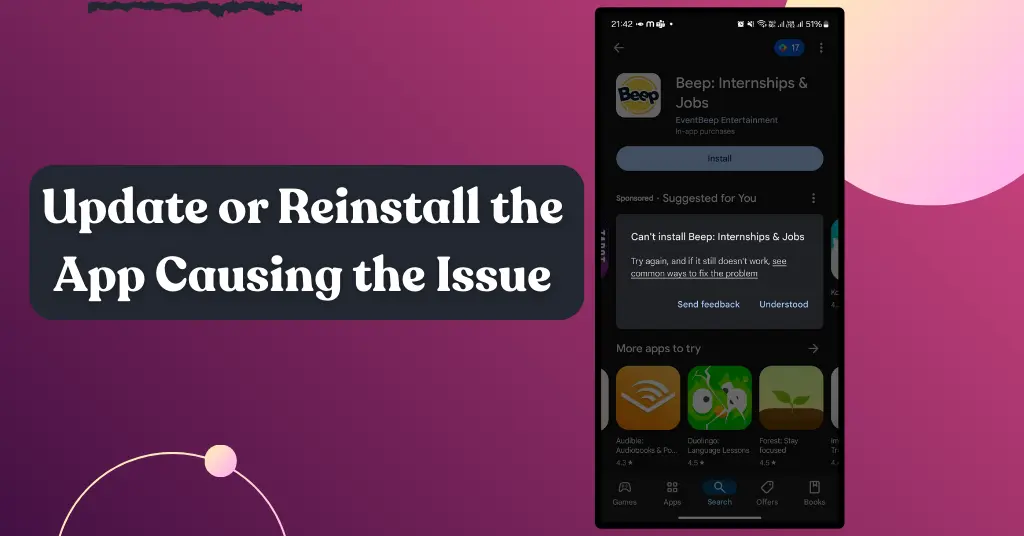
Outdated apps are a major reason for performance problems.
Update the App
- Open Google Play Store
- Search for the app
- Tap Update if available
Reinstall the App
If updating does not work, uninstall and reinstall the app. This removes corrupted files completely.
Make sure you remember your login details before reinstalling, especially for banking or messaging apps.
System-Level Fixes: If Multiple Apps Are Not Responding
If many apps are freezing, the problem is likely with your phone system rather than a single app.
Free Up Storage
Delete unused apps, videos, and large files. Keep at least 20 percent storage free.
Update Android System
Go to Settings and check for system updates. New updates often include performance improvements.
Reset App Preferences
This resets disabled apps and permissions without deleting personal data.
Use Safe Mode
Safe mode helps identify third-party apps causing conflicts.
With faster networks like 5G and 6G, modern apps rely heavily on system performance, making regular updates essential.
Advanced Fixes for Persistent App Not Responding Problems
If the issue continues, try these advanced steps.
Clear System Cache
Some Android devices allow clearing the system cache from recovery mode.
Factory Reset as a Last Option
This should only be done after backing up your data. It restores your phone to its original state.
Check Hardware Limitations
Older devices may struggle with newer apps. If your phone is several years old, performance issues are expected.
As smartphone ecosystems evolve, even accessories discussed in MagSafe accessories 2025 highlight how demanding modern apps have become.
How to Prevent Apps From Becoming Unresponsive in the Future
Prevention is always better than troubleshooting.
- Keep apps and Android updated
- Avoid installing apps from unknown sources
- Restart your phone regularly
- Limit background apps
- Maintain sufficient storage
Watch a quick video tutorial on how to Fix Apps Stopped Working.
These habits significantly reduce the chances of apps freezing or crashing.
Frequently Asked Questions (FAQs)
1. How to fix an unresponsive app
Restart the app, force stop it, clear its cache, and update it. Most app-not-responding issues are temporary and easy to fix.
2. How to fix a program not responding
Close the program, restart your device, and check for updates. If needed, reinstall the app for a clean start.
3. How to fix unresponsive or crashing apps
Clear cache, free up storage, update the app and Android system, and remove conflicting apps.
4. How do I force a program to respond
On Android, open Settings, go to Apps, select the app, and tap Force Stop. Then reopen it.
5. How to make an app unresponsive
Apps may become unresponsive due to system resource overload, a blocked main thread, or poor app optimization. This explanation is purely for educational understanding.
Final Thoughts
Understandably, Android users experience app unresponsive issues, but it’s seldom a permanent issue. With a little effort, most issues can be resolved in minutes without the need for professional assistance.
Using good maintenance practices and keeping your device optimised will ensure minor disruptions and a smoother experience.
Feel free to continue to explore Smart Tech Guru for more app guides, Android fixes, and tech insights that will be relevant for the years to come.